How to Debug AI-Generated Code (Even If You Can't Code)
Learn how to debug AI-generated code with a calm, repeatable loop for non-coders: read the error, isolate the change, ask the AI, verify, revert. Start practicing.
By VibeGym Team · · Updated
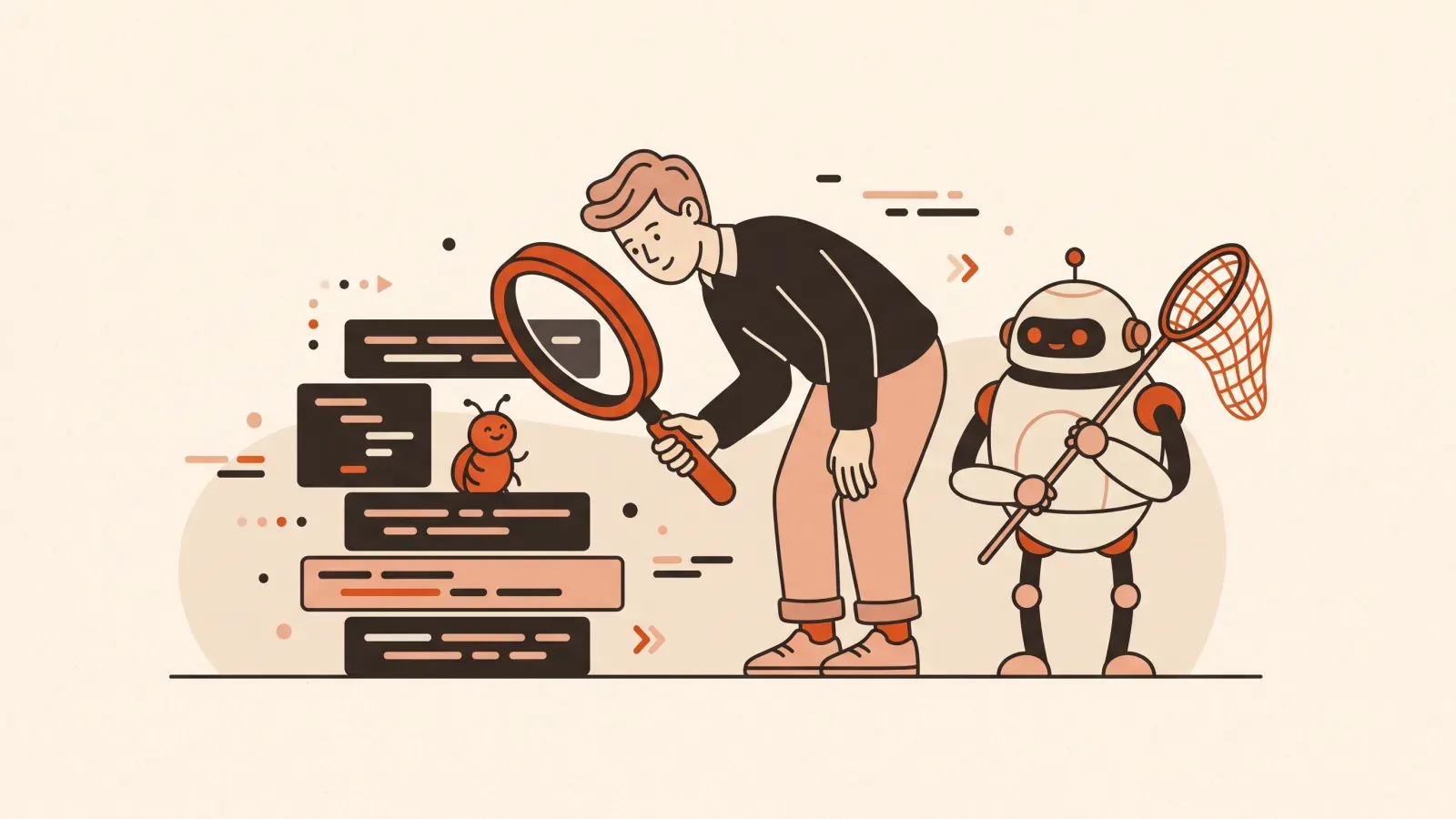
Debug the behavior, not the confidence of the answer
An AI-generated fix can look convincing and still miss the failure. Your job is to create a check that distinguishes a working result from another plausible explanation. Start with what you expected, what happened and the smallest set of steps that reproduces the difference.
This guide uses a habit tracker that loses entries after refresh as an illustrative example. For a completely blank browser page, start with the white-screen triage guide.
1. Write a reproducible report
A useful report for the tracker is:
Expected: a habit stays in the list after a page refresh.
Actual: the list becomes empty.
Steps: open the app, add “Walk”, refresh the browser tab.
Environment: local preview, current branch.
Last change: habit state moved into a new component.
Notice that this does not guess the cause. It establishes the observation. If you cannot reproduce the problem consistently, record what differs between successful and failed attempts: account, browser, input, timing or environment.
2. Identify the boundary where the result disappears
For this example, ask:
- Does the interface add the habit to memory?
- Is the intended storage actually written?
- Does the saved record exist after the write?
- Does page initialization read it again?
- Is the reader using the same key or account as the writer?
A useful hypothesis is “the save handler updates component state but no longer writes storage.” It predicts a specific observation: the item appears until refresh, but the expected stored value never changes.
For a network-backed app, inspect the relevant request and response in the browser’s Network panel. For an exception, preserve the Console message and stack rather than replacing it with “save is broken.”
3. Ask for one evidence-based repair
Use the reproduction and the last diff to identify where persistence stops.
Show the evidence for your hypothesis before changing code.
Propose the smallest fix, then verify add → refresh → visible habit.
Also check an empty list and a failed save.
Do not change the database schema or remove validation unless you explain why.
A small diff is easier to assess. If the agent proposes replacing the whole application, ask which observation requires that scope. Sometimes a broader design change is justified; it should have a reason you can inspect.
4. Keep loading, empty and failed states distinct
An empty list is not the same as a failed request. Replacing a thrown error with an empty array can make the screen look calm while hiding lost access or a broken backend.
Define the intended response for each state. For example, a successful empty response can show “Add your first habit.” A failed save should tell the user the change was not stored and allow a retry where appropriate. The correct UI depends on the operation, particularly when repeating it could create duplicate records.
5. Test the original failure and a nearby success
| Check | Why it matters |
|---|---|
| Add one habit, then refresh | Repeats the reported failure |
| Load an empty list | Covers valid absence of data |
| Use invalid input | Checks that validation still works |
| Simulate a failed save in a test environment | Checks that the UI does not report false success |
| Repeat a request | Checks duplicate or retry behavior |
| Try two sample accounts, if applicable | Checks whether records are scoped to the right user |
Run existing project checks as well. Unit tests can cover a transformation; integration tests can cover the request and database behavior; a browser check covers the actual interaction. Each provides different evidence.
6. Keep a record of the result
Save the changed files, the reproduction, the check results and anything still uncertain. Commit after the relevant checks pass. If a live release still fails, use the deployment evidence rather than assuming a successful local run proves the server is equivalent.
GitHub’s introductory repository workflow explains branches, commits and pull requests. Our VibeGym case study shows how explicit provider failures and confirmation states became integration tests for a real form.
Use the downloadable bug-report template, try the free exercise, or follow the debugging lesson path. The useful habit is to make every proposed fix answerable by a repeatable check.
Sources checked 2026-10-03
-
Chrome DevTools Console — checked 2026-10-03.
-
Claude Code best practices — checked 2026-10-03.
-
PostgreSQL backup and restore — checked 2026-10-03.
-
Network panel — checked 2026-10-03.
-
introductory repository workflow — checked 2026-10-03.
#debugging#beginners#ai tools#vibe coding